
Introduction
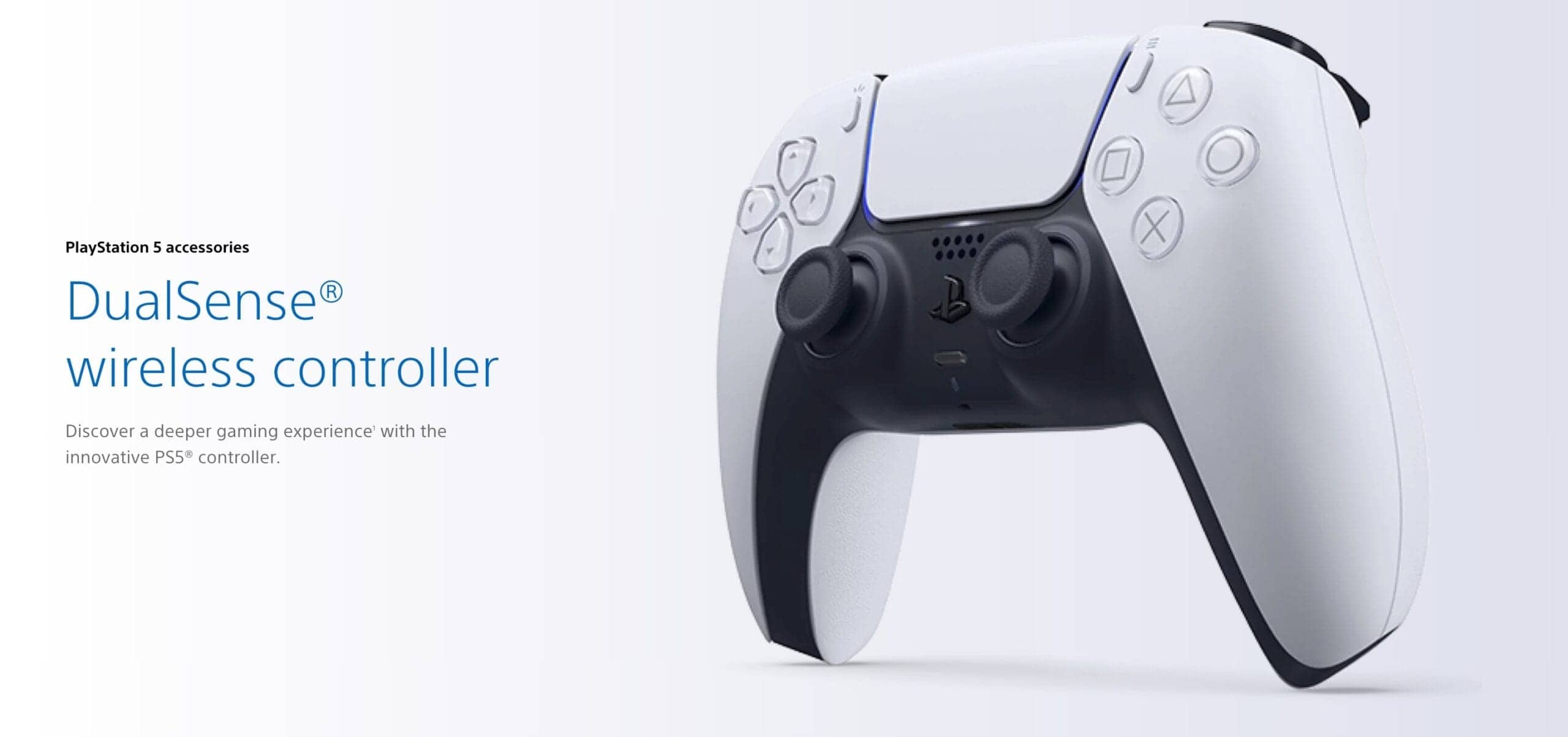
The DualSense controller revolutionized gaming with its haptic feedback and adaptive triggers, but most gamers aren't using it to its full potential. Here are 15 essential tips to enhance your PlayStation 5 gaming experience.
Maximize Battery Life
Your DualSense's battery draining too fast? Try these settings:
- Lower Haptic Intensity: Settings → Accessories → Controllers → Vibration Intensity (Medium/Weak)
- Reduce Trigger Effect Strength: Same menu → Trigger Effect Intensity
- Dim the Light Bar: Accessibility → Controller → Brightness (Dim/Low)
- Turn Off Mic Auto-Activation: Sound → Microphone → Microphone Status When Logged In (Mute)
Hidden Touchpad Gestures
- Swipe left/right in supported games for quick actions
- Two-finger swipe activates special features in some titles
- Long press often opens maps or inventory
- Clickable zones: Left and right halves can act separately
Use Your Phone as a Second Screen
PlayStation App Integration:
- Download PlayStation App on iOS/Android
- Connect to the same Wi-Fi as PS5
- Use phone keyboard for fast typing
- View guides without leaving your game
- Manage friends/messages quickly
Master the Mute Button
- Single press: Mute/unmute mic
- Hold 2 seconds: Adjust chat/game audio balance
- Orange light: Mic is muted (always verify before voice chat)
Adaptive Trigger Customization
- Accessibility Menu can disable adaptive triggers
- Some games allow per-game trigger tuning
- Recommended OFF: Competitive FPS (faster firing)
- Recommended ON: Racing + adventure games for realism
Controller Speaker = Immersion Boost
Enable: Settings → Sound → Controller Speaker
- Best games: Astro’s Playroom, Returnal, Resident Evil Village
- Use headphones for multiplayer, speaker for single-player immersion
- Adjust volume from the same menu
Create Custom Button Assignments
- Settings → Accessibility → Controllers → Custom Button Assignments
- Enable Custom Button Assignments
- Customize button mapping
- Save profiles for different games
Quick Access Menu Shortcuts
While gaming, hold the PS button for 2 seconds:
- Quick access to volume, mic, notifications
- Switch between games/apps fast
- Instant screenshot/video capture settings
Haptic Feedback Sweet Spots
These games use DualSense haptics REALLY well:
- Astro’s Playroom
- Returnal
- Gran Turismo 7
- Ratchet & Clank: Rift Apart
- Spider-Man 2
Voice Command with Built-in Mic
- Press PS button
- Say “Hey PlayStation”
- Commands like: “Open [game name]”, “Screenshot”, “Record that”
Clean Your Controller Properly
- Use isopropyl alcohol (70%) on cotton swab
- Clean buttons, analog sticks, and touchpad
- Never spray liquid directly onto controller
DualSense on PC Gaming
Wired: Plug USB-C → Windows detects immediately
Wireless: Hold PS + Create buttons for 3 seconds → pair via PC Bluetooth
Create vs Options Button Shortcuts
- Create: Short press screenshot, long press video menu, double press start/stop recording
- Options: In-game menu, sometimes alternate menu (like photo mode)
Controller Firmware Updates
- Connect controller using USB-C
- Settings → Accessories → Controllers
- Select your controller
- Update when prompt appears

DualSense Edge vs Standard: Is Upgrade Worth It?
DualSense Edge (~$199) adds:
- Replaceable stick modules (reduces drift worries)
- Back paddles (4 programmable inputs)
- Adjustable trigger travel
- Swappable stick caps
- Carrying case + USB cable lock
Stick with standard if: casual gaming, budget-focused.
Bonus Tips
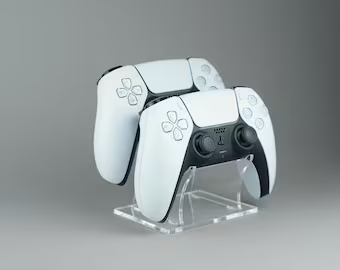
- Multi-controller charging: official charging station supports 2 controllers
- Charging from rest mode: Settings → System → Power Saving
- Account switching: Press PS button → Switch User
Conclusion
The DualSense controller is a technological marvel, and these tips will help you get the most out of it. From extending battery life to unlocking hidden features, mastering your controller means better gaming.